
Add auto scroll to long product forms
Minor update to add auto-scroll function to long product forms
Add global form fields
The ability to create/update global form fields is ideal for a form that you will use repeatedly (eg Accessibility, Catering, a list of churches).
To create a Global Field
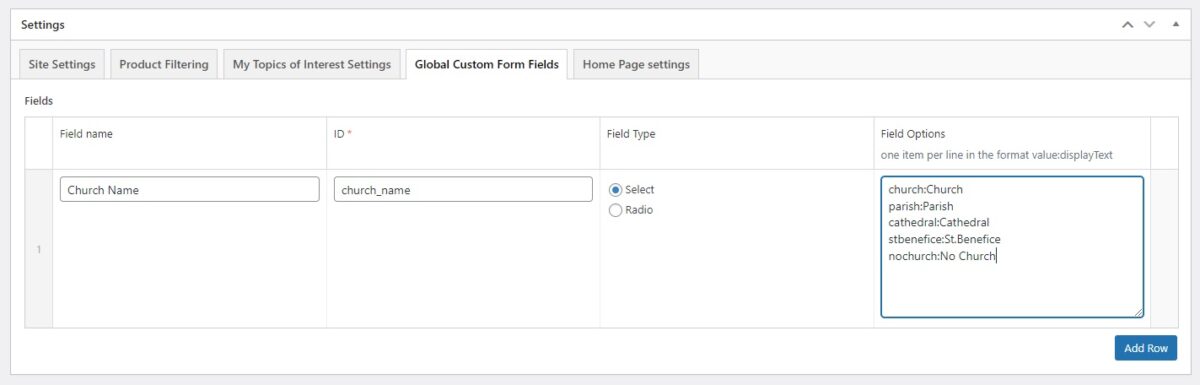
- Go to theme settings > global custom form fields
- Add a Row ensure the name, ID and field type are completed appropriately.
- Note that in the ‘Field Options’ you must follow the format value.
- one entry per line
- the first part (called the ‘value’) must only use lowercase, no spaces, and no special characters
- separate value and display text with a “:” e.g. church:Church
- the second part (called the ‘display text’) can use upper/lower case, spaces, full stops (eg stbenefice:St.Benefice and nochurch:No Church)
- Save / Update
Using Global field:
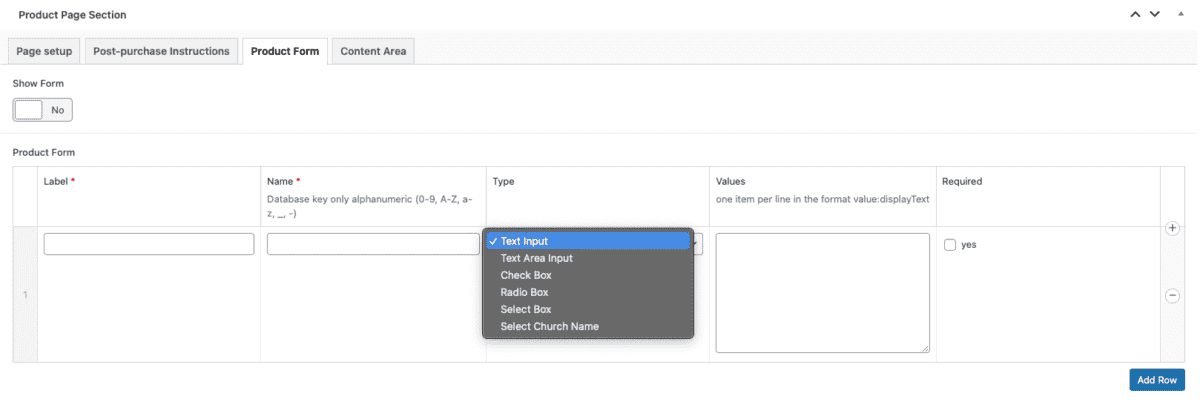
- Go to a product and create a form row in either Product page section > Product form or Approval System > Form
- The new global fields will appear in the ‘Type’ drop-down.
- Select a global field and the options will be auto-populated.
- Make sure the rest of the row fields are filled in appropriately.
- You can add to the ‘Field Options’ list if required (note, additions made here will not be stored as the default for future use)
- Save/Update
Auto populate form field IDs from field name/label
When creating a new row in one of the product forms, once the title is created the id is auto-populated based on the title.
The ID will only be regenerated when the name/label changes and the ID is empty.
Leave a Reply
You must be logged in to post a comment.